UX Audit Checklist: Find and Prioritise Website Usability Problems
A practical guide to reviewing key website journeys, recording usability issues and turning your findings into a clear, prioritised action plan.

TL;DR
- Review complete journeys, such as finding a service and sending an enquiry, rather than isolated screens.
- Check clarity, navigation, content, forms, mobile behaviour, accessibility and system feedback.
- Record the conditions and evidence behind each finding. A screenshot alone rarely tells the whole story.
- Separate severity for the user from business impact, confidence and implementation effort.
- Give each agreed action an owner and a clear way to verify the fix.
A website can look great and still make people work too hard. The service they need is hidden behind a vague menu label. A form rejects their answer without explaining why. The next step is obvious to your team, but not to someone visiting for the first time.
A UX audit checklist helps you review those moments systematically. Start with the tasks people come to your website to complete, record where the experience gets in their way, then prioritise the findings by their effect on users and your business.
The result should be a useful set of decisions: what to fix, what to investigate and how to check whether the changes helped.
What a UX audit can tell you
A UX audit is a structured review of how well an experience supports the people using it. It can combine an expert interface review with analytics, support feedback and usability research, depending on the evidence available.
These inputs answer different questions. Analytics may show where people leave a journey. A support message may reveal a recurring misunderstanding. Watching someone attempt a task can help explain what makes that task difficult.
An expert review can identify likely problems, but it does not prove how your audience behaves. Nielsen Norman Group makes the same distinction: heuristic evaluation complements user research rather than replacing it. Read their guidance on heuristic evaluation.
Be explicit about what you reviewed and what remains unknown. A focused review of the enquiry journey should not be presented as an assessment of the entire website.
How to conduct a UX audit: start with a task
Choose a user goal and connect it to a business goal. For example: a potential client needs to find out whether you offer the right service; your business needs relevant enquiries.
Then write a realistic task: “Find the service that fits your project, understand what it includes and ask the team a question.” Avoid instructions that reveal which menu or button to use. You want to evaluate whether the route makes sense.
Before you begin, agree on:
- Scope: journeys, page types and states included in the review.
- Context: relevant devices, browsers, languages and logged-in or logged-out states.
- Evidence: analytics, search terms, support feedback or previous research you can actually access.
- Completion: what a successful task looks like, including the confirmation after an action.
Use a test environment for actions that would create real orders or enquiries. If you cannot inspect a step, record that limitation instead of marking it as passed.
Your website UX audit checklist
For each check, record pass, issue, not checked or not applicable. A pass means no problem was found in the conditions you tested; it is not a guarantee for every visitor.
1. Purpose and next steps
- Can a first-time visitor understand what the page offers and who it is for?
- Does the main heading describe something concrete, rather than relying on a slogan?
- Is the next action easy to find and does its label explain what happens next?
- Do competing buttons make the choice unnecessarily difficult?
Try entering through a service page, not just the homepage. People may arrive without the context your homepage provides.
2. Navigation and finding information
- Do menu labels describe destinations in language your audience understands?
- Can people distinguish between similar services or categories?
- Is it clear where they are and how to return to the previous level?
- Where search or filters exist, do they help people recover from no results?
Follow the route with a specific question in mind. “Can I find this?” is more useful than “Does the menu look tidy?”
3. Content and decision-making
- Are the details needed to make a decision available before the main call to action?
- Can people scan headings to find answers about scope, suitability or next steps?
- Are unfamiliar terms explained where they appear?
- Do links, contact details and supporting information match what the page promises?
Missing information can look like a design problem. If visitors cannot tell what a service includes, making the button brighter will not answer their question.
4. Forms and error recovery
- Does each field have a clear, persistent label, with required fields identified?
- Are format requirements explained before someone makes a mistake?
- Does an error identify the affected field and explain how to fix it?
- Is valid information preserved after an error?
- Does successful submission show a clear confirmation and explain what happens next?
Test incomplete and invalid answers as well as the happy path. Check what happens after a failed submission or an interrupted connection, where your test setup allows it.
5. Mobile interaction
- Can people reach and use the navigation, forms and primary actions on a real phone?
- Do sticky elements, banners or the on-screen keyboard cover important content?
- Are controls easy to select without accidentally activating a nearby action?
- Does the journey still work when content wraps, expands or changes orientation?
A narrower desktop window is useful for an initial check. It does not show every interaction you will encounter on a phone.
6. Accessibility basics
- Can you complete the key journey with a keyboard and see which control has focus?
- Are headings meaningful, form controls labelled and informative images given appropriate text alternatives?
- Does enlarged text remain readable and usable?
- Is important information communicated through more than colour alone, with sufficient text contrast?
These are starting points, not a complete accessibility assessment. W3C’s Easy Checks explicitly warns that passing basic checks can still leave significant barriers. Use the W3C guide for a first review.
7. Loading, feedback and unexpected states
- Is it clear when the website is processing an action?
- Can people tell whether an action succeeded, failed or is still in progress?
- Does content shifting during loading cause accidental clicks or obscure information?
- Do empty states, broken links and unavailable services offer a useful next step?
Record the device and connection conditions when you find a problem. “The site feels slow” is difficult to act on. “The form shows no feedback after submission under these conditions” gives the team something to investigate.
Have a project in mind?
Let’s talk
UX audit examples: turn observations into useful findings
The following examples are illustrative. They show how to document a problem; they are not findings from a Flair client project.
Example: a form that leaves people guessing
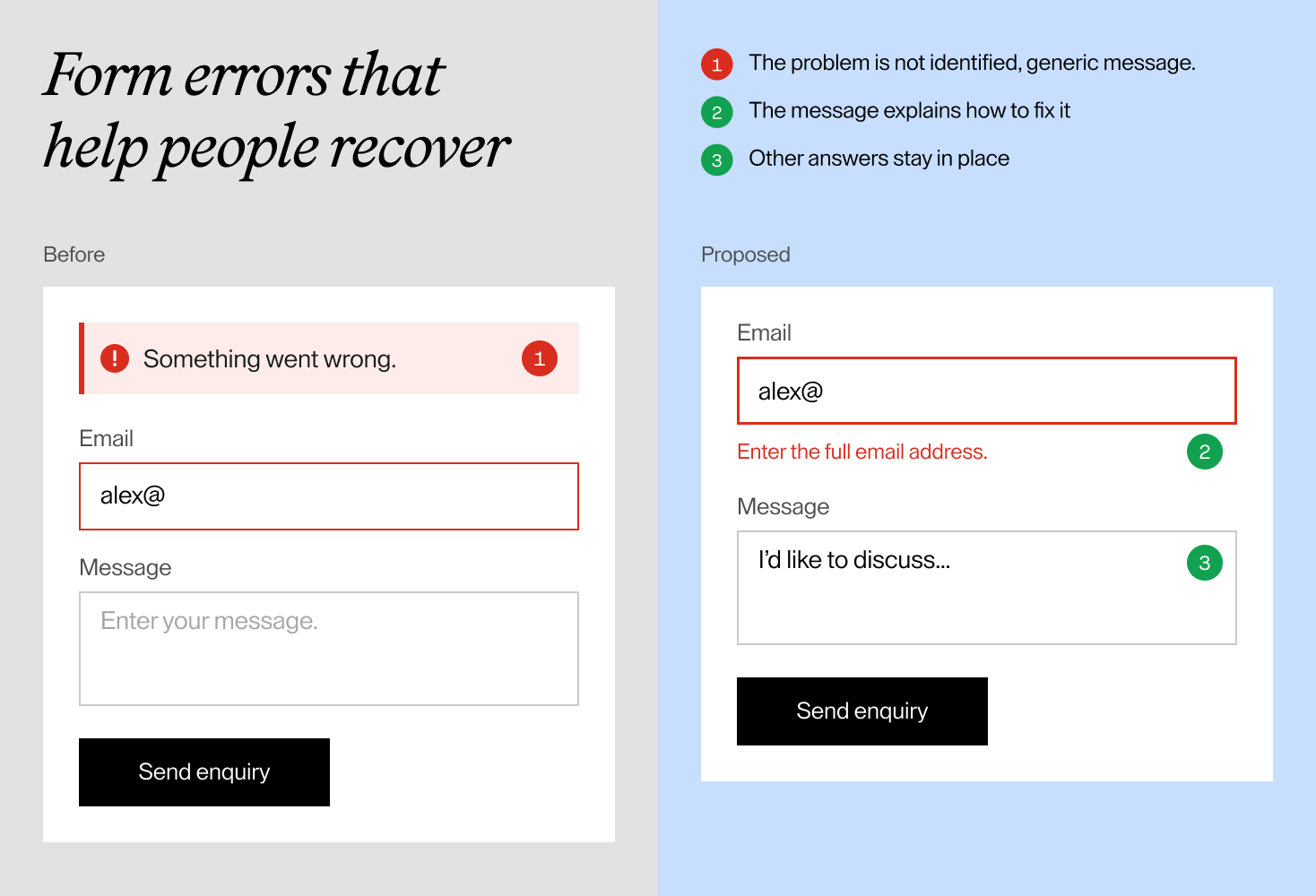
Observation: after an invalid email address is entered, the form displays “Something went wrong” above the fields. It does not identify the email field or explain the expected format.
User consequence: the person has to work out what failed before they can continue.
Suggested change: show a specific message beside the email field, connect the message to the field for assistive technology and preserve the other answers. If the error prevents submission, move focus to an appropriate error summary or invalid field so the feedback is discoverable.
Verification: repeat the invalid-email task with keyboard and assistive-technology checks, correct the answer and confirm that the form can be submitted without re-entering valid information.
Example: service names that hide the difference
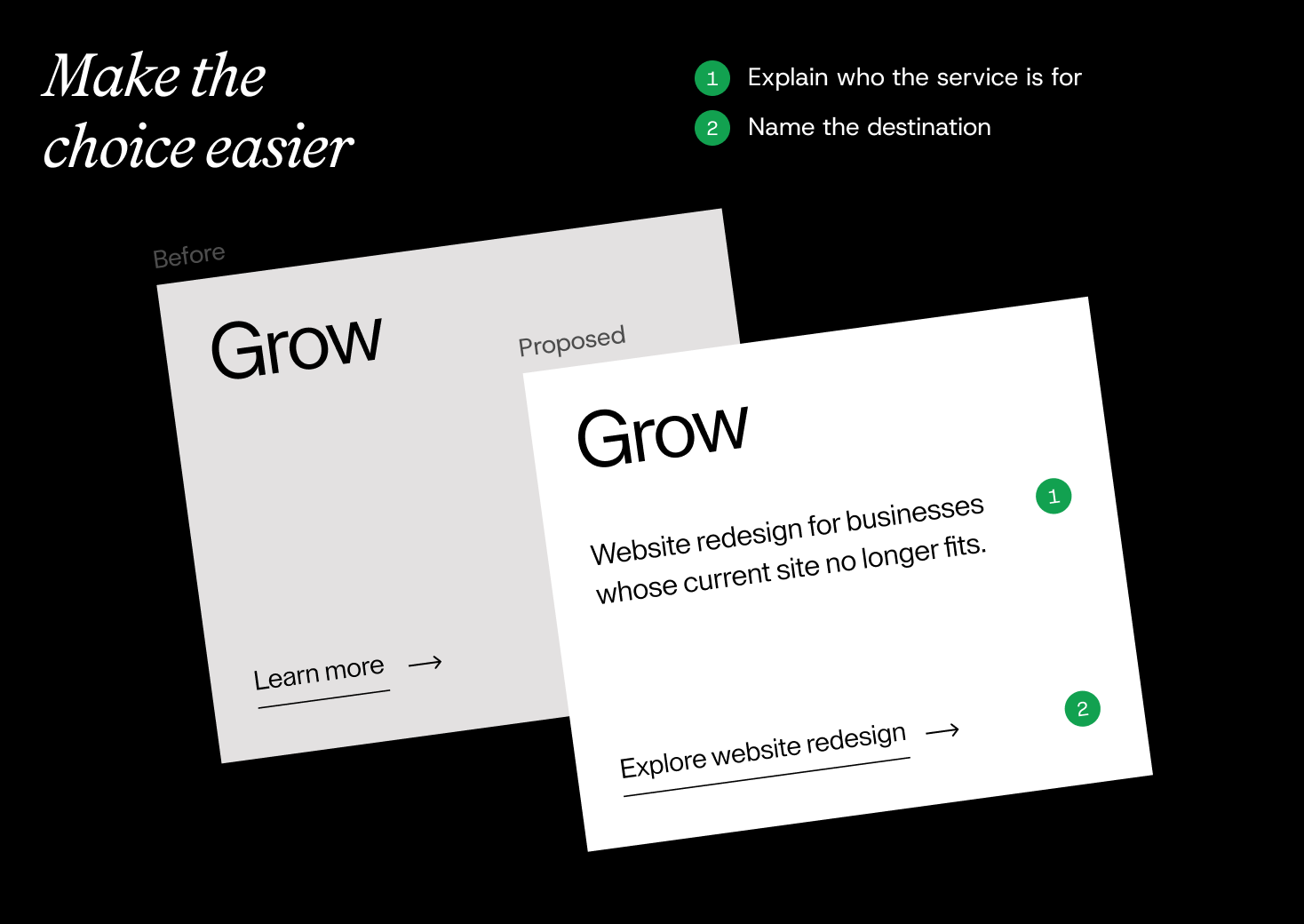
Observation: a services page offers “Launch”, “Grow” and “Transform”, each with the same “Learn more” button and no explanation of the intended project.
User consequence: visitors have to open several pages to understand which route fits their needs.
Suggested change: keep the brand personality, but add a plain-language description and a meaningful link label for each service.
Verification: ask representative visitors to choose a service for a realistic project and explain their choice. Check whether the descriptions support the intended decision before treating the change as proven.
Prioritise by consequence, not by how easy a fix looks
A long list of findings can make everything feel urgent. Separate the questions before deciding what to do next.
Severity: how much does the problem disrupt the task for an affected user?
Use a simple working scale, agreed within your team:
| Severity | Working definition |
|---|---|
| Critical | A key task is blocked and there is no reasonable workaround. |
| Major | The task is possible, but requires substantial effort or a difficult workaround. |
| Minor | The task remains achievable with limited friction. |
| Cosmetic | Presentation is inconsistent, with no demonstrated effect on completing the task. |
Business impact: which goal does the issue affect, and how directly? A problem in the main enquiry journey may matter more to the current business goal than a comparable issue on a rarely used informational page. Do not turn that judgement into a revenue claim without evidence.
Reach: who encounters the issue, and under which conditions? Mark this as unknown if you lack evidence. Low overall traffic does not make a complete barrier for a particular user group unimportant.
Confidence: did you reproduce a functional failure, observe people struggling or identify a plausible risk during expert review? These are different kinds of evidence. Be precise about what each one supports.
Effort and dependencies: what is needed to investigate or fix the issue? Get input from the people responsible for design, content and development. A small-looking change may depend on a shared component or an external service.
Then choose an action:
- Fix first: confirmed blockers and serious barriers in important journeys.
- Plan next: meaningful friction with enough evidence to support a change.
- Investigate: potentially important issues where the cause or user effect is uncertain.
- Backlog: lower-impact improvements to revisit with related work.
This is a discussion framework, not a formula that produces an objectively correct score. Easy improvements can run alongside bigger work, but they should not keep serious barriers waiting indefinitely.
A simple UX audit prioritisation worksheet
Copy the following structure into your team’s working document. Keep one finding per record. The filled rows below continue the illustrative examples; their priority is provisional and must be reassessed against real evidence.
| Field | Form error example | Service choice example |
|---|---|---|
| Finding ID | AUD-01 | AUD-02 |
| Journey / location | Enquiry / email field | Service selection / service cards |
| Conditions and evidence | Example scenario: invalid email produces a generic error; attach actual URL, device and screenshot during an audit | Example scenario: cards lack descriptions; attach actual URL and screenshot during an audit |
| User consequence | Must guess what to correct | Must open multiple pages to compare services |
| Severity | Major if recovery requires substantial guesswork | Minor if destination pages make the options clear |
| Business impact | Directly affects sending an enquiry; actual loss unknown | May affect finding a relevant service; actual effect unknown |
| Reach / confidence | Reach unknown; reproduce behaviour in the actual environment | Reach unknown; user effect remains a hypothesis |
| Effort / dependencies | Developer estimate needed; form component and error handling | Content and design review; service descriptions must be accurate |
| Proposed action | Plan next; escalate if further checks reveal a blocker | Investigate with representative visitors |
| Owner / status | Assign an owner / open | Assign an owner / open |
| Acceptance check | Specific, discoverable error; valid data retained; corrected form submits | Visitors can select the intended service and explain why |
| Follow-up | Record retest result and date | Record research result and resulting decision |
For a new finding, capture: ID → task and URL → conditions → evidence → user consequence → severity → business impact → reach and confidence → effort → action → owner → acceptance check → retest result.
Keep the observation separate from the recommendation. “People cannot identify the right service” describes a problem to investigate. “Add a carousel” commits to a solution before you know whether it will help.
Finish with a plan you can act on
Review the findings with the people who will change the website. Agree on owners, dependencies and the first set of actions. For uncertain findings, the next action may be research rather than a redesign.
After implementation, repeat the original task in the relevant conditions. Check related pages when a shared component changes. Where appropriate, use follow-up usability sessions or comparable analytics to assess the outcome. A change in conversion alone does not establish why it happened.
A useful audit gives your team a clearer next step. It can lead to small improvements, a focused redesign or further research. The scope should follow the evidence.
If your website feels harder to use than it should, tell us what people need to do on it. We can talk through where the experience needs a closer look and what a sensible next step could be.
FAQ
Can I run a UX audit without analytics?
Yes. You can review key tasks, reproduce functional problems and use available customer feedback. Label unknown reach and impact clearly. Without behavioural data or user research, some conclusions will remain hypotheses.
Which pages should I review first?
Start with the journeys most important to your users and business. Include their entry points, decision pages, actions, errors and confirmations. Add representative page templates so shared problems are not missed.
Can an automated tool do the audit for me?
Tools can flag certain technical or accessibility issues and help collect evidence. They cannot establish on their own whether your service descriptions make sense to your audience or whether a journey supports a real decision. Combine their findings with manual review and relevant user input.
How often should we repeat a UX audit?
Review affected journeys after significant changes and when new evidence points to a problem. Your cadence should reflect how often the website changes and how important its tasks are. Retest agreed fixes as they ship rather than waiting for the next full audit.